By
By 
Let’s be honest — Canva has been the go-to design tool for many marketing teams. It’s quick, colorful, and easy to use. You can whip up a campaign visual faster than you can decide what to order for lunch. But as projects grow, so do team needs. Suddenly, Canva’s friendly design space can start to feel a little limited.
Maybe your team wants more advanced editing tools, stronger collaboration, or better ways to handle brand assets. Or perhaps you’re curious about tools that suit your creative process without making you jump through a hundred tabs.
In this post, we’ll explore seven practical Canva alternatives that marketing teams can rely on. Each one offers something different — from smarter design features to better campaign organization and pricing that doesn’t make your finance team sigh.
- Simplified – best for all-in-one content creation and scheduling
- Adobe Express – best for quick branded visuals and posts
- VistaCreate – best for ready-made templates and social content
- Fotor – best for photo editing and AI-powered design
- Piktochart – best for infographics, presentations, and reports
- Snappa – best for speedy social media graphics
- Visme – best for interactive presentations and data visuals
We’ll also take a close look at how Simplified’s all-in-one approach compares with the rest so you can pick the right fit for your team before committing to another creative platform.
Grab your coffee, open a fresh browser tab, and let’s explore which Canva alternative could make your marketing workflow smoother and a bit more fun.
What to Look for in a Canva Alternative
Before diving into the list of tools, let’s pause for a moment. Not every Canva alternative will fit your team the same way. Think of it like choosing a coffee — everyone claims theirs is the best, but it really depends on your taste and how strong you like it.
When you’re picking the right tool, here are some key things to consider:
- Collaboration features: Marketing is rarely a solo act. Look for platforms that make it easy to invite teammates, share drafts, and give feedback in real time. No one wants to chase comments across three different chat apps.
- Custom templates and brand kits: Consistency builds brand trust. Tools that let you store color palettes, fonts, and logos help your team stay on-brand across every campaign.
- Content scheduling and publishing: Some tools go beyond design by letting you plan and publish posts directly to social channels. It’s a handy feature if you like keeping your design and marketing workflow in one place.
- AI and automation tools: Whether it’s background removal, image resizing, or quick content creation, AI can save time. The trick is to find a tool that blends AI support without making your designs feel robotic.
- Pricing transparency: No one likes nasty surprises. Check for what’s included in each plan — especially features like cloud storage, exports, team seats, and advanced design tools.
Once you know what matters most to your team, it becomes easier to decide which Canva alternative fits your creative goals and budget.
Top 7 Canva Alternatives for Marketing Teams
1. Simplified – Best for All-in-One Content Creation and Scheduling
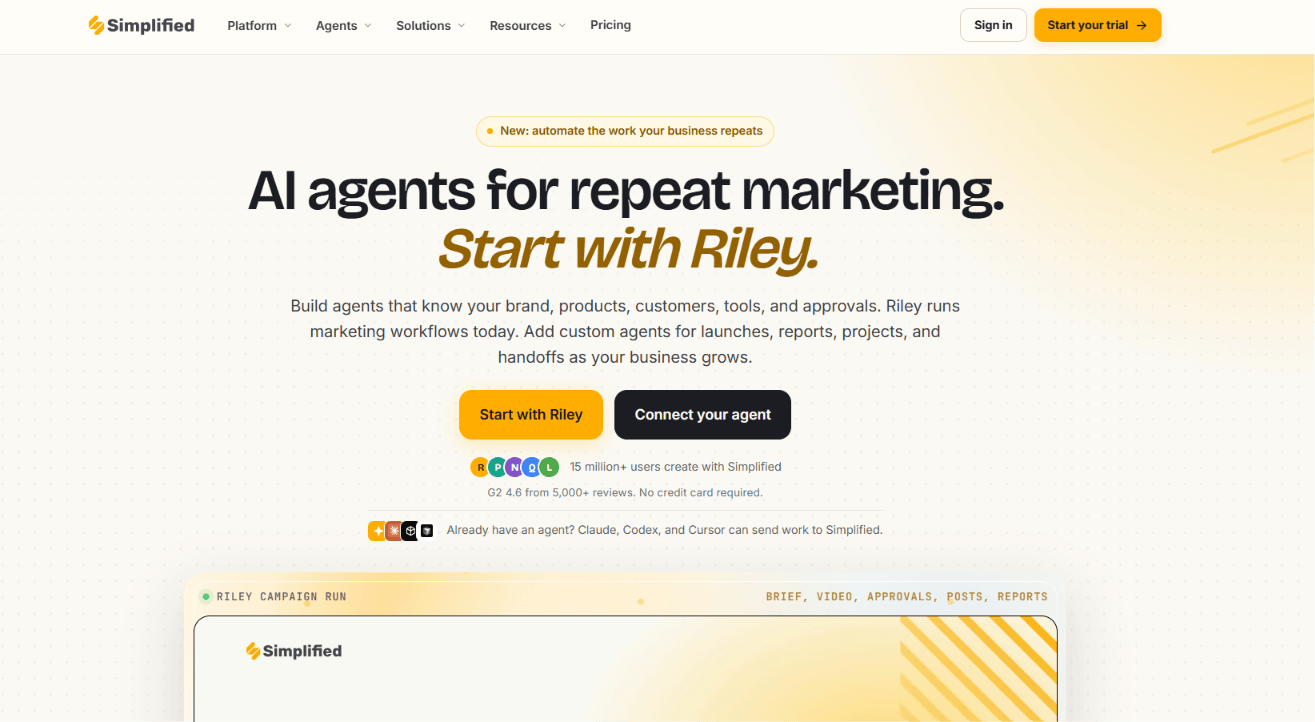
If your marketing team wishes all your design, writing, and scheduling tools lived in one place, Simplified is the answer. Create social posts, write ad copy, edit videos, and schedule content all in one workspace — and with Riley, Simplified’s AI marketing agent, you can hand off a full brief and get a ready-to-approve campaign back instead of assembling it piece by piece.
Key Features
- Design editor with templates, Brand Kit (fonts, colors, logos), stock images & icons
- AI writing tools for content creation (social captions, blog drafts, ad copy) built into the platform
- Riley, an AI marketing agent that plans, creates, and queues a full campaign from a single brief
- Social media scheduler: plan, queue, and publish posts directly to major platforms
- Team collaboration features: shared workspaces, roles, and asset libraries
- MCP server support, letting tools like Claude, Codex, or Cursor trigger Simplified workflows directly
Pros
- Unifies multiple workflows — design, copy, scheduling, and now agentic execution — reducing tool fragmentation
- Good for non-designers and marketing teams handling many content types (graphics, video, social)
- Riley removes manual handoffs between writing, design, and publishing for teams running frequent campaigns
- Scheduling built in means moving from creation to publishing without switching tools
Cons
- As an all-in-one tool, it may not match the depth of specialist tools for very advanced video editing or enterprise-level design systems
- No permanent free plan — see pricing note below
- Because many features are bundled, there may be a slight learning curve for teams unfamiliar with multi-functional platforms
Best For
- Small to mid-sized marketing teams who want one unified tool for content creation and distribution
- Brands that publish regularly across social media and want to reduce switching between separate tools
- Teams that want to hand off a campaign brief to an agent rather than manually coordinating each step
Pricing
A correction worth being direct about: Simplified doesn’t currently have a permanent free-forever plan. There’s a trial (covering a limited number of campaigns, AI words, and AI designs) to test the platform, followed by the Starter plan at $19/month, with additional campaigns available at $10 each. Always check current pricing directly, since terms have changed since earlier versions of this comparison were written.
Choose Simplified If You Need:
✅ All-in-one creative suite (design, AI writing, video, and scheduling)
✅ An AI agent (Riley) that can run a full campaign from one brief
✅ Real-time team collaboration and a shared brand workspace
✅ Centralized social media calendar across major platforms
✅ Design-to-publish workflow without switching apps
Bottom Line: Simplified gives marketing teams everything they need in one place — from brainstorming ideas to publishing finished posts, with Riley available to run the coordination for you. It’s a strong fit for teams that want to create, plan, and schedule content without juggling multiple tools, though it’s worth budgeting for the Starter plan rather than expecting a lasting free tier.
Bonus: Simplified vs Canva: Which Tool is Better for Marketing Teams?
2. Adobe Express – Best for Quick Branded Visuals and Posts

If you’ve ever thought, “I really wish Canva felt a bit more like Photoshop—just without the seven open toolbars,” Adobe Express may hit the spot. It offers quick tools for social graphics, branded visuals, flyers, and videos, while neatly connecting with Adobe’s other software. For teams already in the Adobe ecosystem, it’s like finding an extra coffee pod in the breakroom: unexpectedly convenient.
Key Features
- A large library of professionally designed templates (static & video) that can be customised for social posts, flyers, web banners.
- Brand kit capabilities: define logos, colour palettes, fonts and apply them across designs to maintain consistency.
- Advanced editing tools: one-click resize to adapt designs for different platforms, remove backgrounds from photos/videos, drag-and-drop video editing.
- Social scheduling: integrate and schedule posts directly to social accounts (depending on plan) without leaving the tool.
- Access to a large asset library: millions of stock photos, videos, music tracks, and design elements (in higher-tier plans) from Adobe Stock.
- Generative AI features: built-in AI credits to generate visuals, apply effects and accelerate creative workflows.
Pros
- Simple and fast — less design overhead means quicker turnaround for social posts and branded content.
- Strong brand-consistency functions help teams keep visuals aligned with brand guidelines.
- Solid integration with Adobe’s ecosystem (Stock assets, Creative Cloud libraries) for users already in Adobe’s architecture.
- Multi-platform (desktop + mobile) makes it versatile for creators on the go.
- Free plan available lets users test core features with no cost.
Cons
- Even though simpler, it can still be more complex and costly than very lightweight tools designed purely for social posts.
- The free tier has limitations (templates, assets, downloads) which may force upgrade for serious usage.
- Some users report that newer versions introduced more complexity or slower performance compared to earlier “Express” versions.
- For highly advanced custom design or specialist graphics work, a full-feature design tool may still be required.
Pricing (USD approximate)
- Free Plan: $0 — includes basic editing tools, 5 GB of storage, access to many templates, limited stock assets.
- Premium Plan: Approx. US $9.99/month (when billed annually) — includes premium templates, brand kits, more storage, advanced features.
- Teams/Business Plan: Higher tier for teams (2+ seats) with collaboration, admin controls, more storage and assets (prices vary).
Choose Adobe Express If You Need:
✅ Quick branded visuals with professional polish
✅ Templates optimized for social posts and stories
✅ Adobe-quality design with easier usability than Photoshop
✅ Fast resizing and background removal tools
✅ Integration with Adobe Creative Cloud assets
Bottom Line: Adobe Express is great for teams already familiar with Adobe tools who need speed and consistency. It’s ideal for marketing departments that prioritize visual brand identity and quick turnarounds.
3. VistaCreate – Best for Ready-Made Templates and Social Content

VistaCreate (formerly known as Crello) is an online graphic-design platform aimed at non-designers and marketing teams who need to produce high-quality visuals quickly. It offers a large library of templates, photos, and video assets and supports multiple design formats, making it suitable for social posts, blog graphics, ads and more.
Key Features
- 100,000+ design templates and 85+ design formats for digital & print.
- Massive creative asset library: 1 million+ royalty-free photos, videos, vectors; 60,000+ design objects; animated backgrounds and objects.
- Drag-and-drop editor with photo and video editing tools (filters, cropping, animation, background remover in higher plans).
- Brand Kit support: upload your logo, custom fonts, colours to keep branding consistent across designs.
- Social media scheduling & direct posting: prepare graphics and post directly to platforms like Facebook, Instagram, Pinterest.
- One-click resize to adapt designs to different platforms and formats.
Pros
- Very strong template and asset library — lets teams create high-quality visuals without needing advanced design skills.
- Excellent value, especially at the free or low-cost entry level, making it accessible for small teams or solo marketers.
- Good support for social content workflows: quick customization, resizing and direct posting help speed up the process.
- Branding features and brand kit support mean you can maintain visual consistency across posts.
Cons
- Free plan has limitations: fewer premium assets, fewer advanced features (such as background removal) and likely no full team-collaboration features.
- While strong for social and template-based design, advanced design customization (compared with specialist tools) may be more limited.
- Some integration limitations (especially in free/entry versions) for large teams or complex workflows.
- Reports indicate team features, version history, and unlimited storage sometimes require upgrading to Pro plan.
Pricing
- Free (Starter) plan: $0 — includes 100K+ templates, 1M+ creative assets, basic editing/photo tools.
- Pro plan: roughly $10/month (or ~$13/month depending on billing) for full features: 70M+ premium assets, background remover, unlimited brand kits, team features, etc.
- Some sources note a flat rate entry around $9.99 or ~$10 per month for Pro, with annual billing reducing cost.
Choose VistaCreate If You Need:
✅ Ready-to-use templates for social and ad campaigns
✅ Lightweight design tool with drag-and-drop simplicity
✅ Access to a massive template library and stock assets
✅ Built-in animation features for dynamic content
✅ Affordable option for small businesses
Bottom Line: VistaCreate is made for teams that want to publish polished, on-brand content fast — especially across social media — without spending much time designing from scratch.
Bonus: Top 10 Best Image to Video AI Tools
4. Fotor – Best for Photo Editing and AI-Powered Design
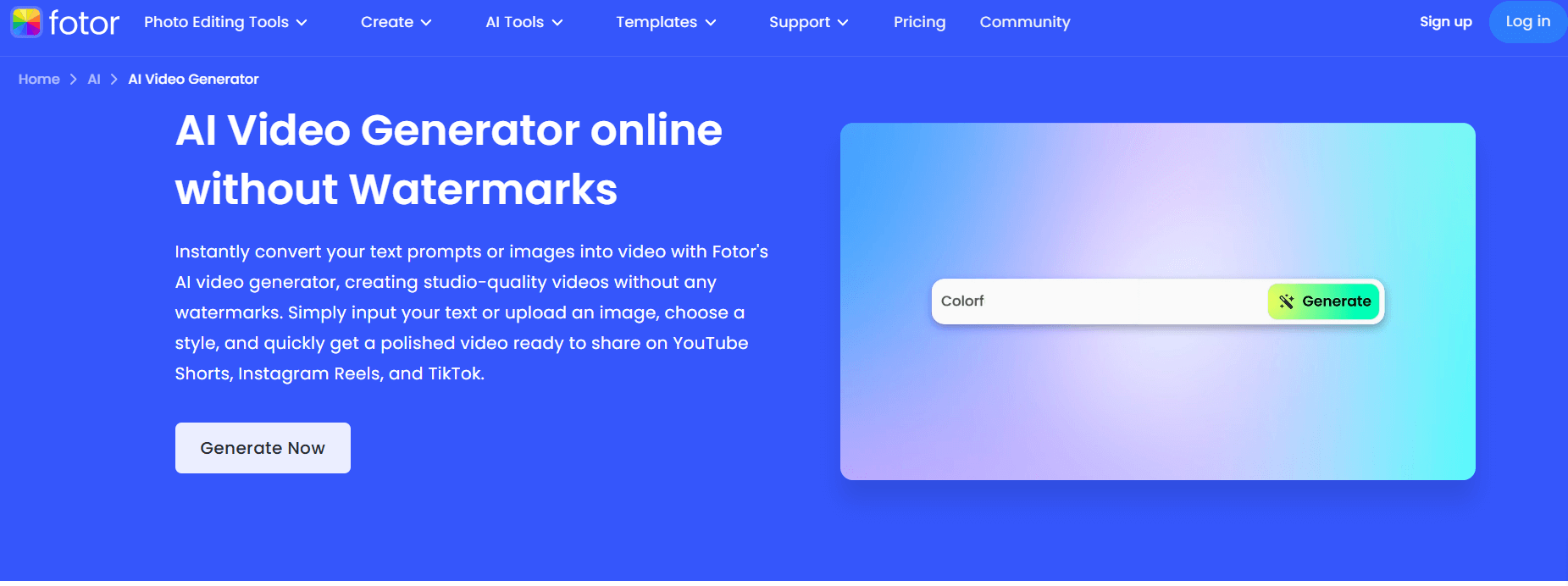
Fotor is a Canva alternative that focuses more on photo editing but also offers basic design templates. It’s good for teams that want to enhance images and create simple graphics without a steep learning curve. Fotor comes with several useful tools like background removal, filters, and AI-powered effects to help polish photos quickly.
Key Features
- Advanced photo‐editing tools (crop, adjust, filters, retouch) plus AI features like background removal, object removal, upscaling.
- Generative AI: text-to-image, image-to-image styles, AI art effects, AI video tools in higher tiers.
- Design templates, collages, and a library of templates/design assets for social media graphics, ad visuals.
- Brand kit and batch editing features in top tiers: multiple brand kits, cloud storage, batch process many images at once.
Pros
- Enables non-designers to produce high-quality visuals with AI assistance and minimal effort.
- Strong value in terms of price vs features, especially for small businesses or freelancers.
- Versatile: covers image editing, design, and AI generation in one platform, reducing the need for multiple tools.
Cons
- Free/entry-level plan has significant limitations: watermarks, limited assets, fewer AI credits.
- Some advanced design or editing features may still lag behind specialist tools (e.g., full professional photo/graphic suites) for power‐users.
- The learning curve for the AI generation or batch editing features may be slightly higher for beginners.
- Some user complaints about subscription or mobile vs desktop feature parity.
Pricing
Here’s a breakdown of current pricing tiers (USD) for Fotor:
- Free (Basic): $0 — Basic editing & templates, limited AI credits, watermark on exports, ~512 MB cloud storage.
- Pro: Approx $8.99/month (or lower if billed annually) — Includes advanced editing & AI tools, ~100 AI credits/month, HD downloads, no watermark, ~2 GB storage.
- Pro+: Approx $19.99/month — Adds brand kits, AI batch editing, ~300 AI credits/month, ~10 GB storage.
- Enterprise / Custom / Credits-only plans: Custom pricing for large teams or high-volume needs.
Choose Fotor If You Need:
✅ AI-powered photo editing and design in one app
✅ One-click background remover and retouching tools
✅ Strong suite for e-commerce and product photo enhancement
✅ Batch editing and AI image generator features
✅ Accessible pricing for freelancers and small teams
Bottom Line: Fotor is best for visual-first marketers who need strong photo editing tools and quick AI-assisted design capabilities without getting into complex software.
Bonus: Top 8 Software Options for Compelling Roblox Thumbnails (Free & Paid)
5. Piktochart – Best for Infographics, Presentations, and Reports
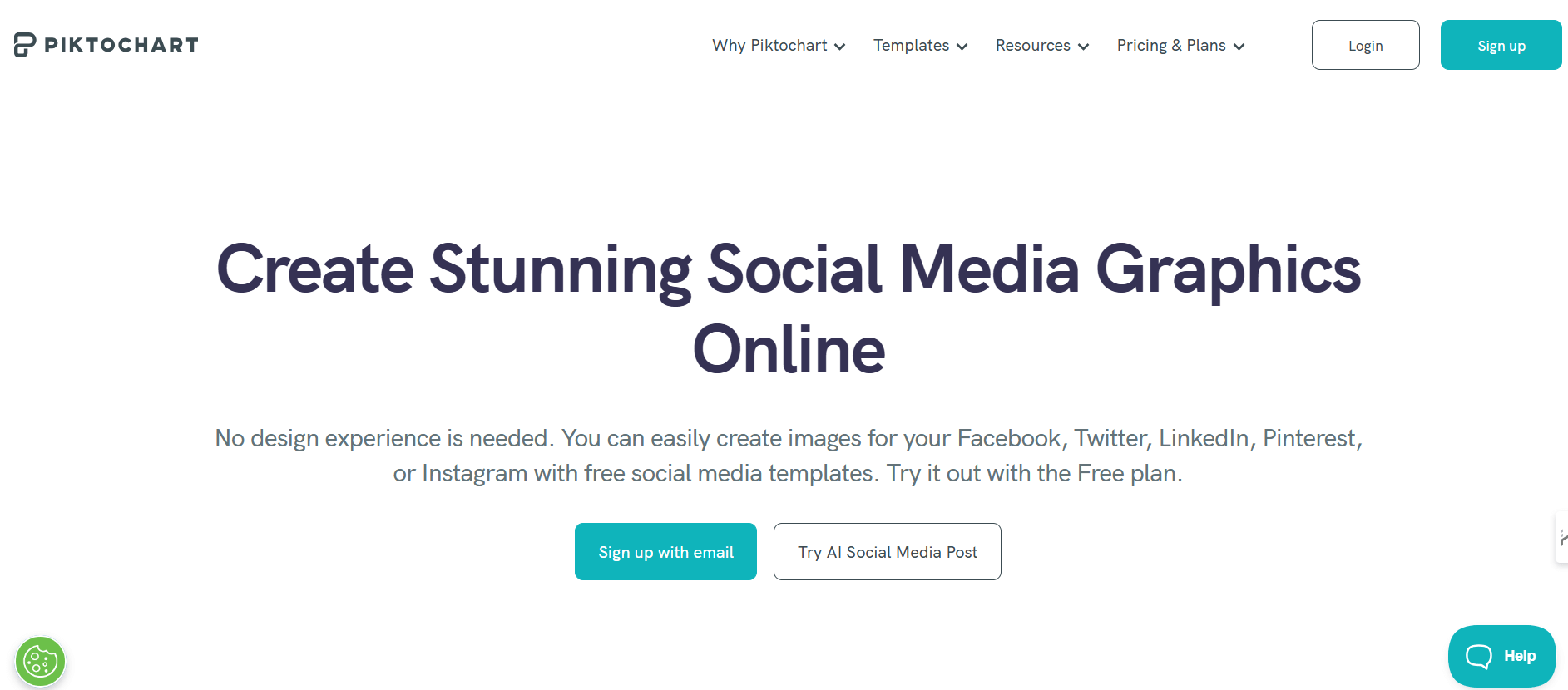
Piktochart is a visual-communication platform designed for marketers, educators, and teams who need to turn data, ideas, and content into infographics, presentations, and reports. It uses a drag-and-drop interface and supports infographics, charts, and embedded data to help non-designers produce polished visuals.
Key Features
- Template library for infographics, reports, presentations.
- Extensive data-visualization tools: interactive charts, maps, CSV/Google Sheets import.
- Brand kit capabilities (fonts, logos, colour palettes) on higher plans.
- Team collaboration: shared workspaces, annotated comments, team templates.
- Flexible export/download formats: PNG, PDF, PPT, web embedding.
- Generative AI for visuals (“AI Generator”) in newer versions.
Pros
- Enables teams without strong design skills to create attractive infographics and data visuals.
- Supports multiple export formats and embedding, useful for reports, presentations, websites.
- Good collaboration features (team templates, annotations) make it team-friendly.
- Strong data-visualization support (charts/maps) beyond typical graphic editors.
Cons
- Free plan has limitations on downloads, storage, branding features.
- Some reviewers note that advanced design/customization may still lag compared to full-scale design tools.
- The learning curve for data-visualization features may be higher than for simple drag-and-drop graphic editors.
- For heavy brand-management or large teams, cost can increase significantly.
Pricing
Here’s a summary of current pricing tiers (USD, annual billing) for Piktochart:
- Free: $0. Includes unlimited visual projects, base templates, 100 MB storage, 2 PNG downloads.
- Pro: ~$14 per user/month (billed annually) for most individuals. Includes 100 GB storage, unlimited downloads, premium icons/illustrations.
- Business: ~$24 per user/month (billed annually) for teams, includes full branding kit, 250 GB storage, unlimited downloads (PNG/PDF/PPT).
- Enterprise/Custom: For large teams (11+ users), includes advanced security, SSO, dedicated support, custom templates.
Choose Piktochart If You Need:
✅ Infographics, reports, and data-driven visuals
✅ Drag-and-drop chart and diagram creation
✅ Built-in templates for presentations and internal reporting
✅ Collaboration and commenting tools for teams
✅ Integration with spreadsheets and CSV files
Bottom Line: Piktochart shines when you need to present data clearly. It’s perfect for agencies, startups, or marketing teams that regularly turn analytics into visual stories.
Bonus: AI Copywriting Tools: 10 Best Options for Content Marketers
6. Snappa – Best for Speedy Social Media Graphics

Snappa is a cloud-based graphic design tool built especially for marketers, bloggers, and small businesses who need to create social media graphics, ad banners, blog visuals and more—quickly and without needing extensive design skills.
Key Features
- A large template library with ready-sized presets for social platforms (Facebook, Instagram, Twitter, etc.).
- Access to 5,000,000+ high-resolution stock photos and graphics included.
- One-click resizing: take a design and resize it for multiple platforms automatically.
- Background removal tool for images, custom font uploads, and brand colours to keep visuals consistent.
- Social media & scheduling integrations (e.g., via Buffer) so you can publish or schedule directly from Snappa.
Pros
- Very fast and user-friendly interface: non-designers can produce good visuals in minutes.
- Significant value for small teams or individuals needing efficient graphics for social media without hiring a designer.
- All-in-one access to templates, stock images, and export options reduces the time spent hopping between tools.
- Affordable entry-level pricing and a free plan make it accessible for small businesses.
Cons
- The free plan is quite limited (e.g., only 3 downloads per month) which may not be enough for high-volume content creators.
- While fast and easy, Snappa’s feature depth is not as extensive as full-fledged design tools (so advanced designers might miss features).
- Web-based only and may depend on internet speed; also mobile editing capabilities are less mature compared to some competitors.
Pricing
Here’s a summary of recent pricing tiers (USD) for Snappa:
- Free Plan: $0. Includes access to 6,000+ templates, 5,000,000+ HD photos & graphics, but only 3 downloads per month.
- Pro Plan: ~$15/month if billed monthly, or ~$10/month if billed annually. Includes unlimited downloads, custom font uploads, background removal, Buffer/social integration for 1 user.
- Team Plan: ~$30/month (or ~$20/month billed annually) for up to 5 users, sharing assets, brand kit, team collaboration.
Choose Snappa If You Need:
✅ Fast, no-frills social media graphic creation
✅ Templates for ads, banners, and blog visuals
✅ Quick resizing for different platforms
✅ Cloud-based workflow with instant publishing options
✅ Easy enough for non-designers
Bottom Line: Snappa is ideal for small marketing teams that prioritize speed. It’s a simple tool that helps you produce social-ready graphics in minutes.
7. Visme – Best for Interactive Presentations and Data Visuals

Visme is an online visual communication platform aimed at helping marketers, teams, and business users turn data, narratives and ideas into infographics, interactive presentations, reports, and other visuals. It emphasizes interactivity (links, animations, pop-ups) and data-visualisation (charts, graphs, maps) beyond typical static design tools.
Key Features
- A drag-and-drop editor with templates for presentations, infographics, reports, webpages.
- Data-visualisation tools: charts, graphs, data widgets, maps, CSV/Google Sheets import to visualise data sets.
- Interactivity features: clickable links, hover-effects, animations, embedding video/audio, interactive elements for web use.
- Brand-kit and team collaboration: shared brand colours, fonts, logos, workspaces for teams, comments and review workflows.
- Multiple export and publishing options: download as PNG/JPG/PDF/HTML5, embed in websites, share links, present online.
Pros
- Strong capability for visualising complex data in an engaging way, making it useful for reports and presentations rather than only social posts.
- Good balance between ease-of-use (non-designers can use) and advanced features (interactive, data visualisation) making it fit for marketing teams that need more than basic graphics.
- Useful templates and assets to reduce time-to-output for infographics, presentations, and interactive content.
- Offers collaboration and brand consistency tools for teams, which is helpful if you have multiple people working on visuals.
Cons
- Although user-friendly, some advanced users feel that customisation and depth do not match specialised design tools like Adobe Illustrator or very custom graphic workflows.
- The free or entry-level plans have limitations (storage, templates, download formats, watermarking), which may restrict serious use until upgraded.
- Some interactive features may not translate perfectly in all embedding environments or devices, so you may experience compatibility or loading issues.
Pricing
Here’s a summary of current pricing (USD, approximate) for Visme:
- Free plan: $0 — unlimited projects, but limited templates/assets, storage, and download/export options.
- Starter/Personal plan: approx $12.25/month (if billed annually) or ~$29/month for monthly billing for individual users.
- Pro/Business plan: approx $24.75/month (if billed annually) or ~$59/month for monthly billing per user. Includes team features, brand kit, full downloads, analytics, etc.
- Enterprise: Custom pricing with advanced security, SSO, audit logs, large teams, dedicated support.
Choose Visme If You Need:
✅ Interactive presentations and animated infographics
✅ Branded templates for marketing and internal communication
✅ Data visualization tools for reports and pitches
✅ Collaboration and real-time editing features
✅ Advanced analytics on viewer engagement
Bottom Line: Visme is for teams that want to make data and presentations come alive. It’s especially powerful for marketing agencies and sales teams that rely on visual storytelling.
Bonus: 12 Best Agorapulse Alternatives and Competitors for Social Media Management
Quick Comparison: A Snapshot of the Best Canva Alternatives
| Tool | Best For | Starting Price* |
|---|---|---|
| Simplified | All-in-one content creation, scheduling & agentic campaigns (design + copy + video + social + Riley) | From ~$19/month (team pricing varies) |
| Adobe Express | Quick branded visuals & posts | Premium from ~$9.99/month for individuals |
| VistaCreate | Ready-made templates and social content | Pro plan ~$10-13/month (billed annually) |
| Fotor | Photo editing + AI-powered design | Pro tier starts at ~$8.99/month or more depending on features |
| Piktochart | Infographics, presentations & reports | Pro ~$14/month (billed annually), Business ~$24/month |
| Snappa | Speedy social media graphics, simple workflows | Pro ~$10/month (billed annually), Team ~$20-30/month |
| Visme | Interactive presentations, data visuals & reports | Starter ~$12.25/month (annual billing), Pro ~$24.75/month |
FAQs
1. Which Canva alternative offers the most features for teams?
Simplified is the best all-in-one platform for teams. It covers design, AI writing, video creation, and social media scheduling — plus Riley, an AI agent that can run a full campaign from a single brief — all in one workspace. This makes it ideal for marketing teams managing multiple content types.
2. What Canva alternative is best for social media content?
If your goal is to create and publish social posts quickly, Simplified and VistaCreate stand out. Both offer ready-made templates, instant resizing for multiple platforms, and direct publishing options to major social channels.
3. Are there Canva alternatives better suited for presentations and infographics?
Yes. Visme and Piktochart are designed specifically for interactive visuals, reports, and presentations. They include templates built for data storytelling and business communication.
4. What’s the best free alternative to Canva?
Among the tools on this list, Adobe Express, VistaCreate, Fotor, Piktochart, Snappa, and Visme all offer genuinely free-forever tiers with real usage limits. Simplified currently offers a trial rather than a permanent free plan, so if a lasting free option is the priority, one of those alternatives may be a better starting point — though Simplified’s Starter plan is worth comparing once you factor in what it consolidates.
5. Which Canva alternative supports real-time collaboration?
Simplified and Adobe Express both allow teams to collaborate in real time. You can share projects, add comments, and manage feedback directly in the platform — no file transfers needed.
6. How do I decide which Canva alternative fits my business needs?
Think about what you create most — social posts, marketing visuals, or reports. For small teams wanting an all-in-one creative solution, Simplified is the most balanced option. For design-heavy needs, VistaCreate or Adobe Express are solid picks.
7. What’s the top alternative to Canva for creating branded videos across teams?
Simplified is the strongest option on this list specifically for video. It includes a dedicated AI video editor, AI Clips for repurposing long-form footage into shorts, and subtitle generation, all tied to the same Brand Kit used for your design work — so branding stays consistent between graphics and video without extra setup. Adobe Express also supports video (web stories, basic animated content), but it’s lighter-weight and better suited to quick social clips than sustained, team-wide video production.
8. What’s the best platform to automate ad visuals compared to Canva or Creatopy for a marketing team?
For pure ad automation at scale, Creatopy wins — it’s built specifically for generating hundreds of ad sizes and variants from one master design. Simplified is the better pick if you want ad creation folded into a broader workflow, since its AI Ads Generator applies your Brand Kit automatically and Riley can produce ad variations as part of a full campaign. Canva lags both here — templates, but no dedicated automation engine.
9. What are the best alternatives to Canva if I need to keep AI output consistent across a large team?
Simplified is the strongest fit. Its Brand Kit applies your colors, fonts, and tone automatically to every AI-generated output, including through Riley, so consistency doesn’t depend on each team member manually following guidelines. Adobe Express and Visme offer brand kits too, but they govern manual design work more than AI output specifically.
The Bottom Line: The Right Design Tool Sets Your Team Up for Success
At the end of the day, the best design platform is the one that actually fits how your team works. Some teams need speed, others need depth — and a few just want everything in one place.
If you’re managing a growing brand or juggling content across channels, Simplified makes life easier by combining design, writing, and scheduling under one roof. It’s made for marketing teams that want to move fast without losing consistency.
But that doesn’t mean the others don’t shine. Adobe Express and VistaCreate are great for quick, polished visuals. Fotor is perfect when image editing takes center stage. And if your team spends hours building reports, Piktochart and Visme turn data into something people actually want to read.
There’s no single “best” Canva alternative — just the one that helps your team create more confidently, collaborate better, and actually enjoy the process. Try a few, see which one clicks, and stick with the tool that makes your workday smoother.