By
By Kapwing is excellent at one thing — video editing. But in 2026, editing is only 25% of your content workflow.
Think about what actually happens after you finish a video in Kapwing. You export it, open Canva to design a thumbnail, switch to ChatGPT to draft a caption, then manually upload everything to Buffer to schedule the post. You’ve just spent 45 minutes inside four different apps completing a workflow that should take 10 minutes in one.
And you’re paying for all of it. Kapwing Pro costs $32/month. Add Canva Pro ($12.99), Buffer ($12), and ChatGPT Plus ($20), and your monthly content bill is $76.99 — for a workflow that still requires you to manually hand off files between apps at every step.
That’s the real problem with Kapwing in 2026 — not what it does, but what it doesn’t do. It has no social media scheduling, no graphic design tools, and no AI writing. For pure video editors embedded inside a larger production team, that’s fine. For solo creators and small businesses managing their own social media from end to end, it’s a workflow gap that costs time and money every single week.
In this guide, we’ve reviewed 7 top Kapwing alternatives across five criteria: price, video editing quality, design capabilities, scheduling, and ease of switching. Whether you want a direct video editor upgrade or a single tool that collapses your entire stack, there’s a clear recommendation for every use case below.
What Is Kapwing?
Kapwing is a cloud-based video editor built for content creators who need professional editing capabilities without installing desktop software. It runs entirely in the browser, supports team collaboration, and is particularly strong for producing social media video formats at speed.
Its AI-powered features have made it a popular choice among creators who need polished output quickly:
- Magic Create: Generate a complete video from a text prompt — no footage required
- Smart Cut: AI automatically identifies and removes awkward silences and dead air
- Auto-Subtitles: 300 minutes of automatic captioning and translation per month on Pro
- Format Conversion: Resize and reformat videos for any platform in a single click
- Team Collaboration: Cloud-based project sharing for distributed production teams
Kapwing Pricing (2026)
| Plan | Price | Export Limit | Key Limitation |
|---|---|---|---|
| Free | Free | 1 minute | Watermark on all exports |
| Pro | $32/mo ($16 annual) | 120 minutes | 6 GB upload cap; AI credits |
| Business | $50/user/year | Unrestricted | Custom billing only; SSO required |
Kapwing genuinely excels at video-specific AI. Magic Create and Smart Cut are among the most capable tools in their category, and the auto-subtitling is both fast and accurate. If your workflow is purely video — editing, trimming, captioning, and exporting — Kapwing is a legitimate choice.
The problem is that most content creators don’t have a purely video workflow. Kapwing does video well. It does only video — and that’s the gap that sends creators looking for alternatives.
Why Users Look for Kapwing Alternatives
User reviews across G2 and Capterra consistently surface three categories of frustration. Understanding each one helps you identify whether Kapwing’s specific limitations actually affect your workflow — and which alternative is the right fix.
Pain Point 1: The Missing Features Problem
Kapwing has no social media scheduling, no graphic design capabilities, and no AI writing tools. These aren’t minor omissions — they’re the three things most creators need to do immediately after finishing a video edit.
- No scheduling: You must export your video, then manually upload and write copy for every platform, one by one
- No design tools: Thumbnails, post graphics, and carousels require a completely separate Canva subscription
- No AI writing: Video captions, descriptions, and social post copy all need a separate tool
- Net effect: Kapwing sits at the center of a 3–4 app workflow, and you’re managing every hand-off manually
Pain Point 2: The Cost Structure Problem
At $32/month for the monthly Pro plan, Kapwing is more expensive than most direct competitors offering comparable video features. But the real cost problem isn’t Kapwing alone — it’s the stack you’re forced to build around it.
- $32/month monthly (or $16/month annual) with no one-time payment option
- Credit-based AI features that run out mid-project without warning
- No refund policy after upgrading, regardless of the circumstances
- Auto-renewing subscriptions that are easy to forget and keep paying for
- Combined stack cost for a typical solo creator: $76.99/month across four tools
Pain Point 3: Technical Friction
Beyond missing features and pricing, Kapwing users consistently cite day-to-day technical frustrations that slow down production workflows:
- Glitches and rendering bugs cited repeatedly in G2 and Capterra reviews (the most common complaint category)
- 6 GB file upload limit even on the Pro plan — a genuine constraint for 4K or long-form footage
- 120-minute export ceiling blocks podcasters and long-form creators
- Cloud-only with no offline access — poor internet means no editing
Top 7 Kapwing Alternatives (2026)
Each tool below has been evaluated on five criteria: price, video editing quality, design capabilities, scheduling, and ease of switching from Kapwing. We’ve clearly noted what each tool fixes — and where it still leaves gaps.
1. Simplified — Best All-in-One Alternative

Price: $20/month • Free tier available • G2: 4.7/5 (2,000+ reviews)
Simplified is the only tool on this list that genuinely replaces Kapwing and the 2–3 tools you’re currently running alongside it. While every other alternative here solves one piece of the content workflow problem, Simplified solves all four — video editing, graphic design, AI writing, and social media scheduling — under one login, for $12 less per month than Kapwing Pro alone.
Video Editing
Simplified’s video editor handles everything the majority of social media creators rely on in Kapwing: trimming, transitions, auto-subtitles, format resizing, and direct export to social specs. It’s not as deep as Kapwing’s Magic Create or Smart Cut for pure AI video generation — more on that below — but it covers the full day-to-day editing workflow without limitation.
Graphic Design
This is where Simplified immediately surpasses Kapwing. With thousands of professionally designed templates for thumbnails, carousels, social banners, and post graphics— plus a built-in AI image generator that creates custom visuals from a text prompt — you can handle everything your video needs without ever leaving the app. Every Kapwing user currently designing thumbnails in a separate Canva tab can consolidate this into a single workflow.
AI Writing
Simplified’s built-in AI writing tool generates captions, video descriptions, hashtag sets, and social copy for every major platform format. Critically, the writing tools share context with your video — so you can generate a caption that’s informed by your content without copy-pasting between apps.
Social Scheduling
Native scheduling to 8+ platforms — LinkedIn, Instagram, Twitter/X, Facebook, TikTok, YouTube, Pinterest, and more — directly from the same interface where you edited the video. This single feature eliminates the most time-consuming step in the Kapwing workflow: the manual export-and-upload cycle.
The Cost Comparison That Matters
Typical Kapwing creator stack: Kapwing + Canva + Buffer + ChatGPT = $76.99/month ($923.88/year) Simplified: $20/month ($240/year)
Annual savings: $683.88 — and one login instead of four.
- Free tier to test before committing: 5,000 words/month plus access to video and design tools
- 4.7/5 on G2 across 2,000+ reviews vs Kapwing’s 4.5/5 across 500+ reviews
- Unlimited video exports with no 120-minute ceiling
- No credit-based AI features that cut off unexpectedly mid-project
- Multi-platform publishing for 8+ social networks from a single scheduling dashboard
Why Simplified Over Kapwing?
Kapwing and Simplified are built for fundamentally different users. Kapwing is a dedicated video editor — it does that one thing well, with standout AI features like Magic Create and Smart Cut that serious video producers genuinely rely on. But at $32/month, you’re paying for a tool that stops the moment your video is exported. No scheduling, no design, no writing — you’re on your own for everything that comes after. Simplified, at $20/month, is built around the full content workflow. You edit the video, design the thumbnail, write the caption, and schedule the post to 8 platforms without ever switching tabs. For solo creators and small teams who manage their own social media, that difference isn’t minor — it’s 3 fewer subscriptions, one unified workflow, and $683 back in your pocket every year.
Best for: Solo creators, small businesses, and marketing teams managing multi-platform social media who want to eliminate subscription sprawl and replace 3–4 tools with one.
2. VEED — Best Cloud Video Editor Alternative
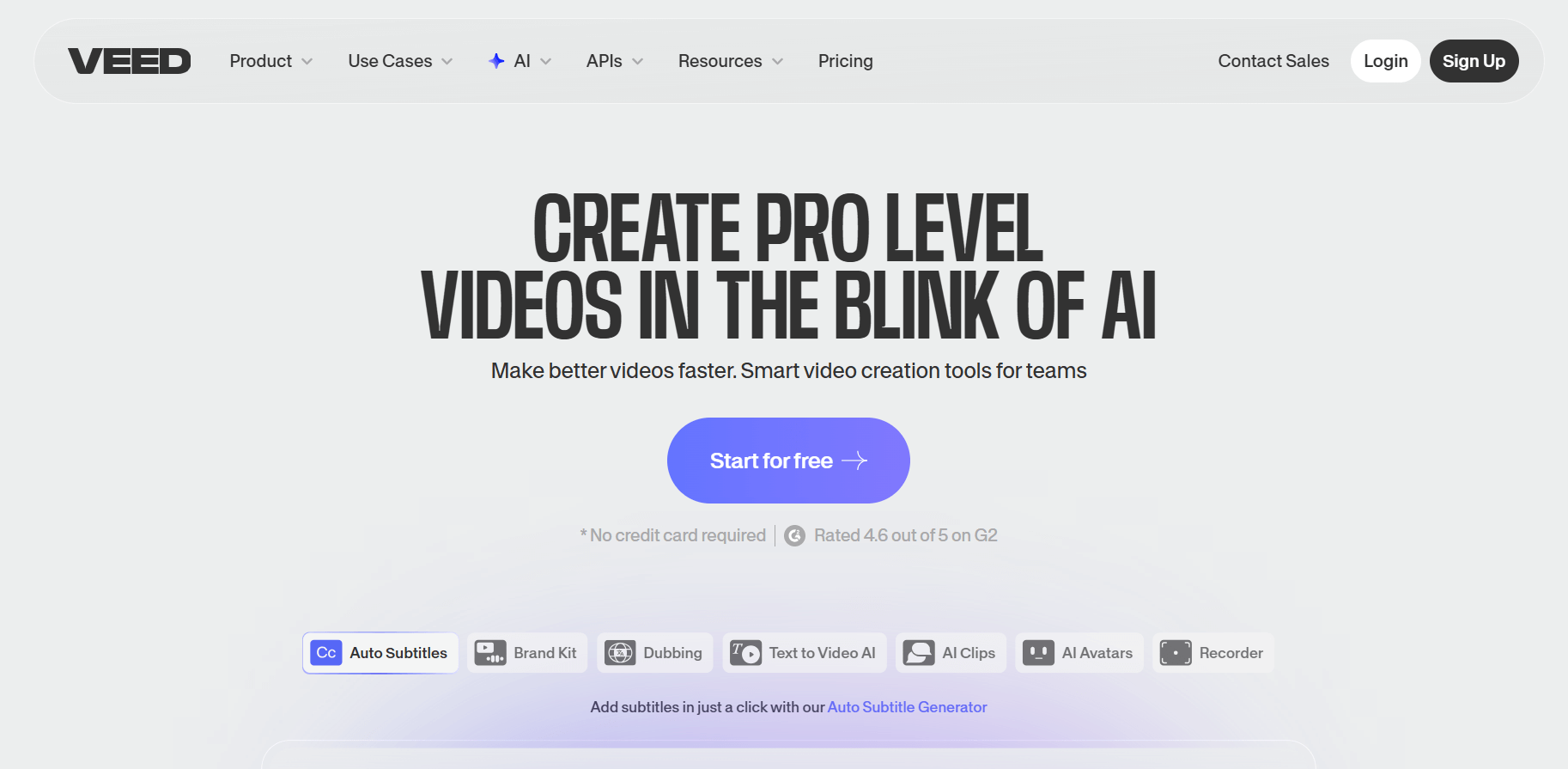
Price: $24+/month
VEED is the most direct Kapwing upgrade for users who want to stay strictly video-focused. Both tools are cloud-based browser editors with strong subtitling and collaboration features, but VEED users consistently report a cleaner interface and significantly fewer rendering bugs — which remains the top complaint in Kapwing’s reviews.
- One-click subtitling and translation with accuracy comparable to Kapwing’s Pro tier
- Noise reduction, custom branding, and transition tools built directly into the editor
- Cloud-based team collaboration with shared project libraries
- Cleaner interface with fewer reported glitches and rendering failures
Important gap: VEED has no scheduling and no design tools. It solves Kapwing’s technical frustrations but not its workflow gaps. If you currently pay for Canva and Buffer alongside Kapwing, you’d still need both after switching to VEED.
Best for: Teams that already have design and scheduling handled elsewhere and purely want a more stable, less buggy video editor than Kapwing.
3. InVideo — Best for Social Media Video Templates
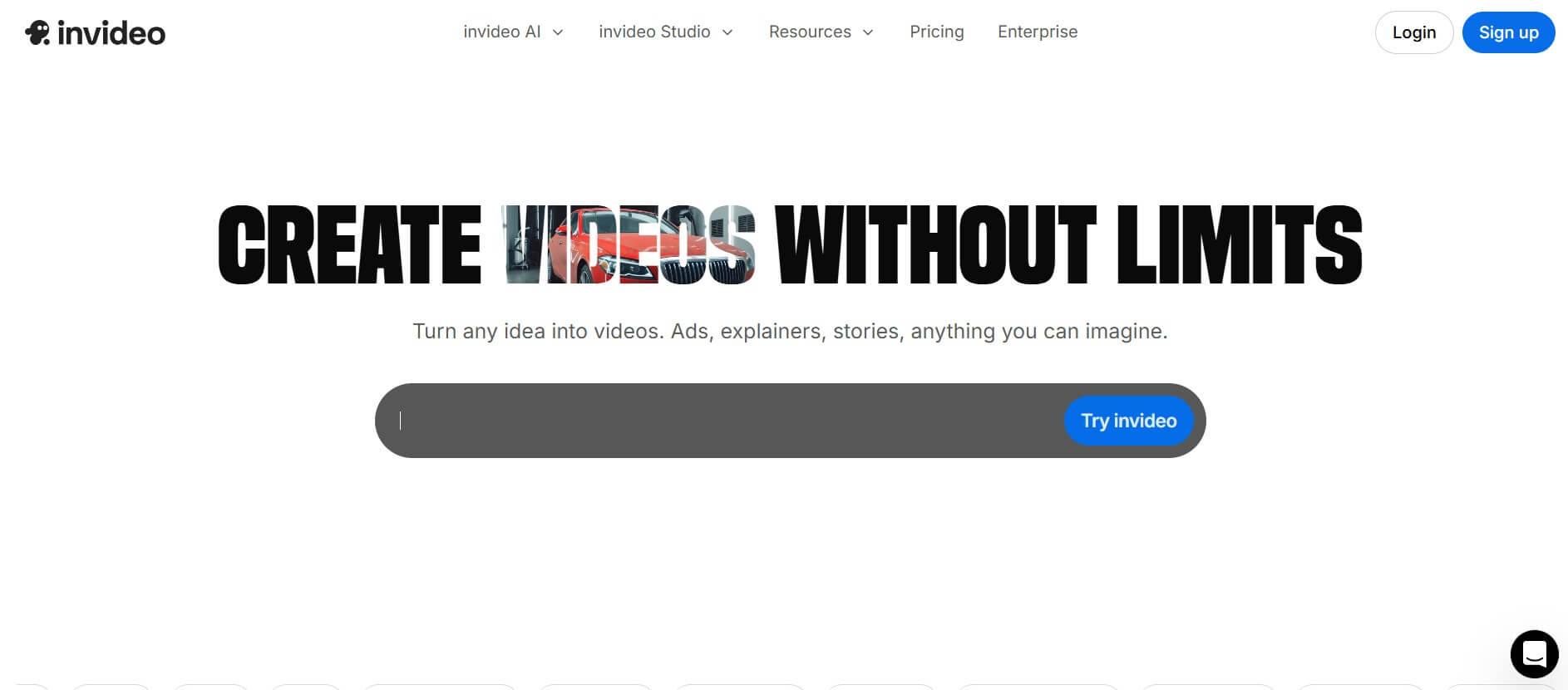
Price: $25+/month
InVideo’s core strength is its template library, optimized specifically for TikTok, Instagram Reels, and short-form social formats. Where Kapwing is a general-purpose editor, InVideo is built around social-first video from the ground up — templates are sized, paced, and styled for what actually performs on each platform, not just what fits the format.
- AI-powered template selection based on your content topic and target platform
- Text-to-video with platform-specific aspect ratios and pacing pre-configured
- Strong for repurposing long-form content (podcasts, webinars) into short-form clips
- Larger template library for social formats than Kapwing
Important gap: No scheduling. Like VEED, InVideo still requires a separate tool to get your finished content published. The hand-off problem remains.
Best for: Social-first creators who batch-produce short-form video content and prioritize template speed over granular editing control.
4. Canva — Best for Design-First Teams
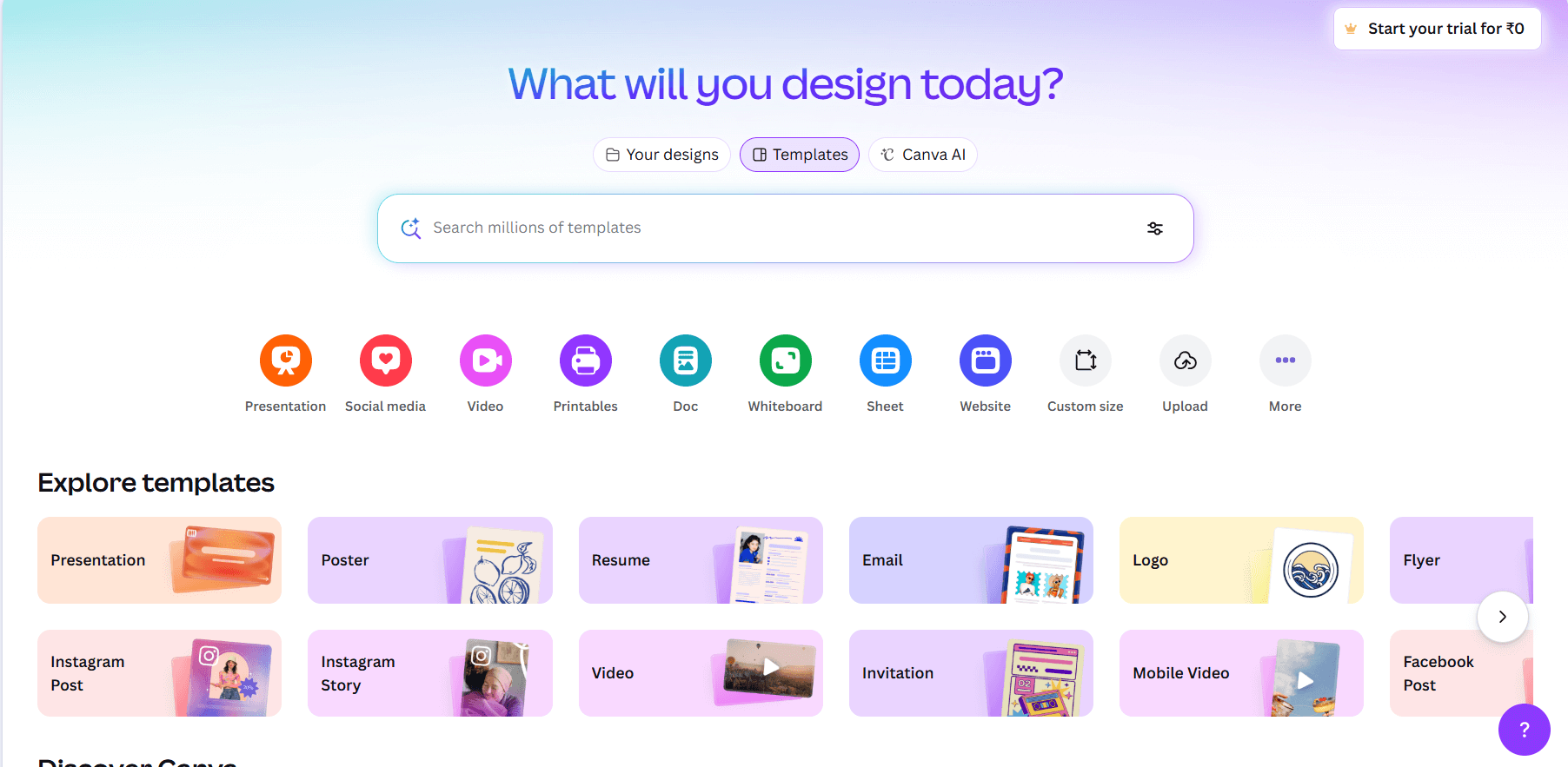
Price: $12.99/month
Canva approaches content creation from the opposite direction to Kapwing — design first, video second. Its graphic design capabilities far exceed anything Kapwing offers, its template library is unmatched for social media graphics, and its video tools are sufficient for simple social formats. For teams where content is primarily static graphics with occasional short video, Canva is both cheaper and more capable than Kapwing.
- Industry-leading template library covering every social media format and platform
- Magic Write AI for basic caption and marketing copy generation
- Video editing available but capped at basic functionality — no advanced AI editing features
- Content Planner scheduling tool available on higher-tier plans
Important gap: Canva’s video editor is genuinely basic. If you need anything beyond simple cuts, captions, and format resizing — complex timelines, noise reduction, long-form editing, or Kapwing’s AI features — Canva won’t replace it for video.
Best for: Teams where content is 80% design (graphics, carousels, presentations) and video is occasional and doesn’t require advanced editing.
5. Clipchamp — Best Free Option
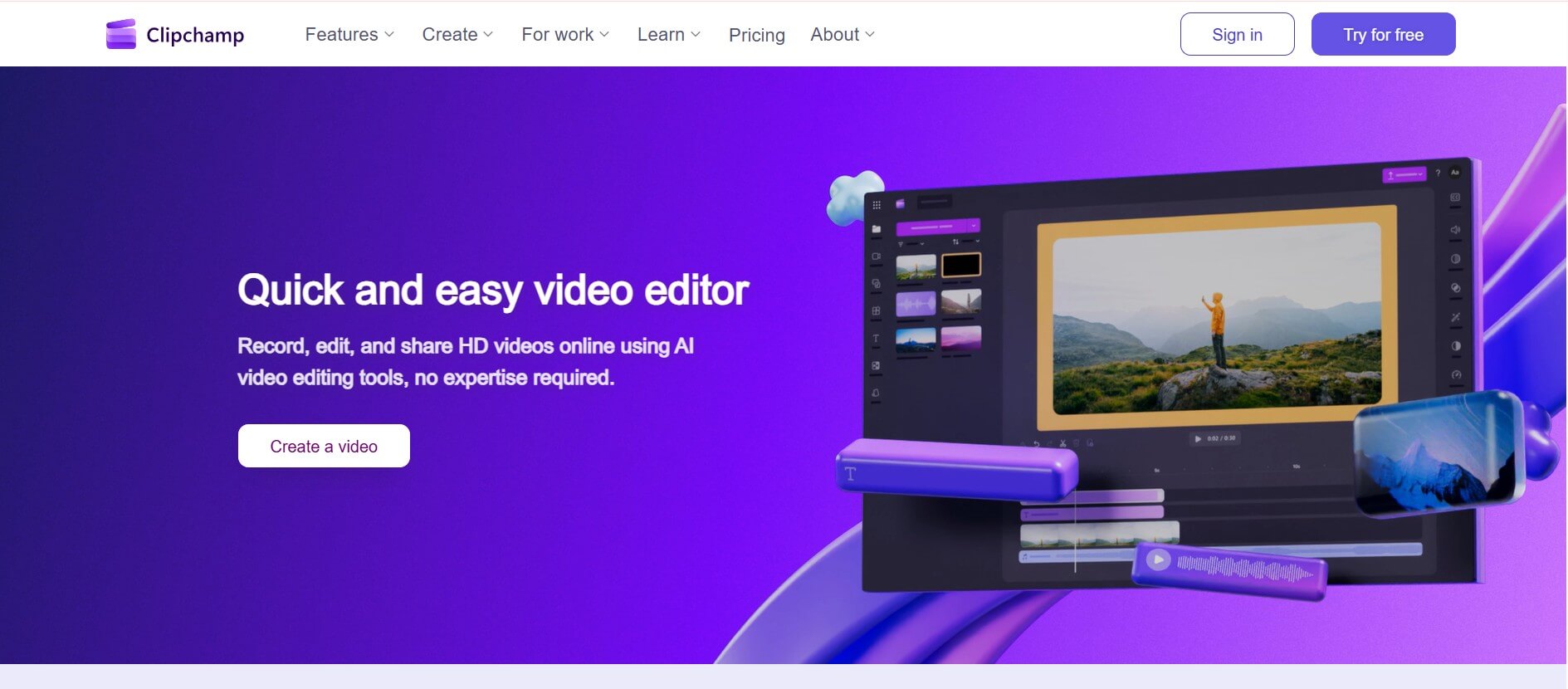
Price: Free (with optional paid upgrades)
Clipchamp, now owned by Microsoft and integrated with Windows 11 and Microsoft 365, is the strongest free alternative for users who need baseline video editing without any cost. Unlike Kapwing’s free plan — which limits exports to 60 seconds and stamps a watermark on everything — Clipchamp’s free tier is genuinely usable for YouTube and Instagram content without restriction.
- Browser-based drag-and-drop editor requiring no software download or installation
- No 1-minute export cap on the free tier — a significant practical advantage over Kapwing Free
- Pre-configured export presets for YouTube, Instagram, and other major platforms
- No scheduling, no design tools, no AI features beyond basic filters
Best for: Budget-conscious users who only need basic editing and are comfortable handling design, writing, and scheduling separately.
6. Pictory — Best for Text-to-Video

Price: $25+/month
Pictory occupies a specific and well-defined niche: converting written content into video automatically. If you have a library of blog posts, articles, or scripts and want to transform them into social video without manual editing, Pictory’s text-to-video AI is the most capable option on this list for that specific workflow — arguably stronger than Kapwing’s Magic Create for blog-and-script-based inputs.
- Automatic blog-to-video conversion with contextually matched stock footage
- Script-to-video with AI voiceover generation and automatic subtitle sync
- Efficient for converting large archives of written content into video at scale
- No scheduling, no design tools, and not a general-purpose editor
Best for: Bloggers and content teams with existing written content archives they want to systematically convert into video.
7. SendShort — Best for Short-Form Clip Optimization
Price: Varies by plan
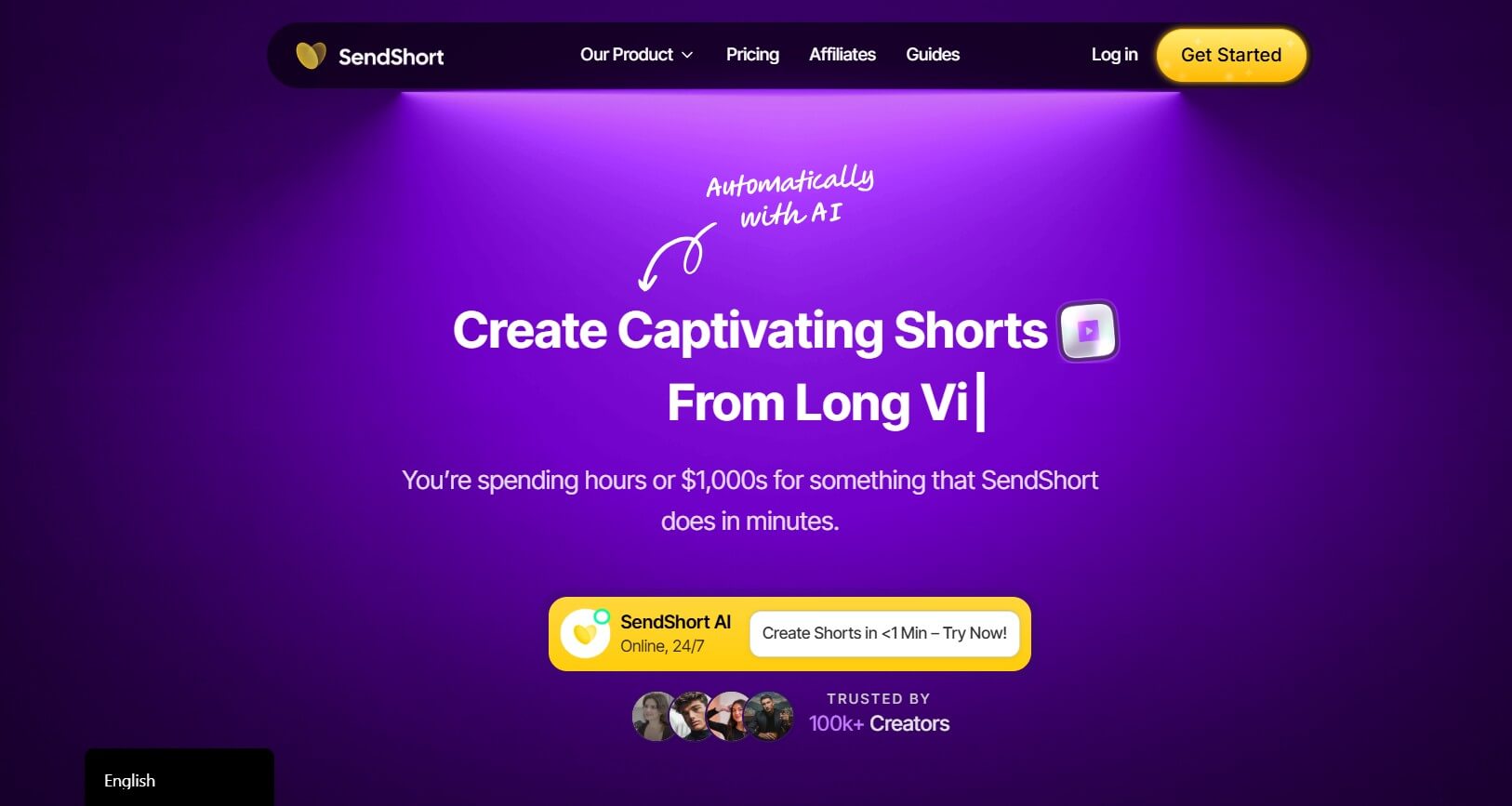
SendShort is a highly specialized tool with one core function: take long-form video (podcasts, webinars, full-length YouTube videos) and automatically extract the highest-potential short clips for TikTok, Instagram Reels, and YouTube Shorts. Its viral clip detection algorithm identifies the most engaging moments and formats them for each platform automatically — a workflow that would otherwise take 30–60 minutes of manual scrubbing.
- AI-powered viral clip detection pulls the best moments from long-form video automatically
- Automatic platform-specific formatting, captioning, and aspect ratio adjustment
- Designed specifically for podcasters and YouTubers who want to repurpose content at scale
- Very narrow use case — not a general editor, no scheduling, no design or writing tools
Best for: Podcasters and long-form YouTubers who want to automate the repurposing of their content into short-form clips without manual editing.
Feature Comparison: Kapwing vs Top Alternatives
Here’s how top 5 tool on this list stacks up across the eight features that define a complete social media content workflow. Pay close attention to the Scheduling and Design columns — these are the two gaps that force creators into multi-tool stacks in the first place.
| Feature | Kapwing Pro | Simplified | VEED | InVideo | Canva |
|---|---|---|---|---|---|
| Price/Month | $32 (monthly) | $20 | $24+ | $25+ | $12.99+ |
| Video Editing | ✅ Advanced | ✅ Yes | ✅ Advanced | ✅ Advanced | ✅ Basic |
| Graphic Design | ❌ No | ✅ Yes | ❌ No | ❌ No | ✅ Yes |
| Social Scheduling | ❌ No | ✅ Yes | ❌ No | ❌ No | ⚠️ Higher tiers |
| AI Writing | ❌ No | ✅ Yes | ❌ No | ❌ No | ✅ Magic Write |
| Auto-Subtitles | ✅ 300 min/mo | ✅ Yes | ✅ Yes | ✅ Yes | ✅ Yes |
| Team Collaboration | ✅ Yes | ✅ Yes | ✅ Yes | ✅ Yes | ✅ Yes |
| Export Length | 120 min | Unlimited | Varies | Varies | Varies |
| Watermark-Free | ✅ Yes | ✅ Yes | ✅ Yes | ✅ Yes | ✅ Yes |
Key takeaway: Simplified is the only tool with checkmarks across all five columns. Every other alternative — including Kapwing — requires at least one additional tool to complete a full content workflow.
Pricing Comparison: The Real Cost of Kapwing
The sticker price of any individual tool rarely reflects what you actually spend. Here’s the full cost comparison between the typical Kapwing creator stack and a consolidated single-tool alternative.
| Tool / Function | Kapwing Stack | Simplified |
|---|---|---|
| Video Editing | Kapwing Pro — $32.00 | Simplified — $20.00 |
| Graphic Design | Canva Pro — $12.99 | Included |
| Social Scheduling | Buffer Essentials — $12.00 | Included |
| AI Writing | ChatGPT Plus — $20.00 | Included |
| Monthly Total | $76.99 | $20.00 |
| Annual Total | $923.88 | $240.00 |
| Annual Savings | — | ✅ $683.88 saved |
$683.88 in annual savings. And one login instead of four.
This isn’t a hypothetical. It’s the actual tool stack most active social media creators are running: a video editor, a design tool, a scheduler, and an AI writing assistant. According to the Content Marketing Institute, 73% of marketers use 3 or more tools for social media content creation, and the average marketer pays over $200/month in SaaS subscriptions.
Users who consolidate to an all-in-one tool report saving 10+ hours per week in workflow management alone — time previously spent exporting, reformatting, uploading, and coordinating between apps that don’t share context with each other.
Who Should Choose Which Tool
The right answer depends on your specific workflow, team size, and what’s currently costing you the most time and money. Use this framework to make the decision without wasting a free trial on the wrong tool.
Choose Kapwing if:
- Magic Create (text-prompt to full video) is a core part of your production process — not just occasionally useful
- Smart Cut (AI silence removal) saves you meaningful editing time on every video
- You need granular video editing control that social-first tools don’t offer
- You’re embedded in a larger production team that already has design and scheduling covered separately
- Long-form video editing is your primary use case and you stay under the 120-minute export limit
Choose Simplified if:
- You’re currently paying for 2 or more separate tools to complete your content workflow
- You’re a solo creator or small team managing your own social media presence end-to-end
- You want to create, design, write, and schedule without switching apps or exporting files
- Budget matters and you want the most capability per dollar spent
- Multi-platform publishing is a regular requirement, not an occasional task
Choose VEED if:
- Technical bugs in Kapwing are your primary frustration and you want a stable video-only upgrade
- Your team has design and scheduling already handled by other tools
- Team collaboration on video projects is a primary workflow requirement
Choose Canva if:
- Your content is primarily static graphics (carousels, posts, banners) with occasional simple video
- Design quality matters more to your workflow than video editing depth
- You want the cheapest paid option that includes both design and basic scheduling
How to Switch from Kapwing to Simplified
Migration anxiety is one of the biggest psychological barriers to switching tools, even when the financial and workflow case is clear. Here’s a step-by-step process that takes less than an hour and ensures nothing gets lost.
- Export all active Kapwing projects. Download your edited .mp4 files before cancelling your subscription. Kapwing retains your cloud files for a period after cancellation, but don’t rely on access being available — download everything you’d be frustrated to lose.
- Set up Simplified and connect your social accounts. During onboarding, connect all the platforms you publish to. This takes about 5 minutes and unlocks the scheduling workflow that makes the migration worthwhile.
- Import your existing video files. Upload your Kapwing exports directly into Simplified’s video editor. Your content is immediately available for further editing, repurposing, or scheduling.
- Rebuild recurring templates. Use Simplified’s template library to recreate any branded formats you used regularly in Kapwing — intro sequences, caption styles, thumbnail layouts. Most creators complete this in 20–30 minutes.
- Run one complete end-to-end workflow test. Before cancelling Kapwing, create one full piece of content in Simplified: edit a short video, design a thumbnail, write a caption, and schedule it. Confirm the complete workflow works for your use case before making the switch permanent.
- Cancel Kapwing — and every tool it now replaces. Once your workflow test is complete, cancel Kapwing. Also cancel any design tools (Canva) and schedulers (Buffer) now covered by Simplified.
- Pro tip: Time your cancellations to the end of each tool’s billing cycle. This prevents a month of paying for overlapping subscriptions during the transition.
Frequently Asked Questions
Is there a free Kapwing alternative?
Yes. Clipchamp is the strongest free alternative — it has no 1-minute export cap and no watermark restrictions on basic exports, giving it a significant practical advantage over Kapwing’s free tier. Simplified also offers a free plan with 5,000 words/month and access to video and design tools, making it a useful way to test the all-in-one workflow before committing to a paid plan.
What’s the best Kapwing alternative for social media scheduling?
Simplified — by a wide margin. It’s the only tool on this list that combines video editing with native multi-platform scheduling for 8+ platforms. Every other video editor here (VEED, InVideo, Clipchamp, Pictory, SendShort) requires a separate scheduling tool. Canva includes scheduling on higher-tier plans but its video editing is too basic for most creators.
Can you schedule videos directly with Kapwing?
No. Kapwing is a video editor only. After you finish editing, you must export the video file and manually upload it to each platform individually, then write captions and copy separately. This is the single most common workflow complaint in Kapwing’s G2 reviews — and the primary reason creators who manage their own social media look for alternatives.
Which Kapwing alternative saves the most money?
Simplified, by a significant margin. The typical Kapwing workflow stack — Kapwing + Canva + Buffer + ChatGPT — costs $76.99/month and $923.88/year. Simplified replaces all four tools for $20/month ($240/year), saving $683.88 annually. Even comparing Kapwing to Simplified alone, Simplified costs $12 less per month while adding features Kapwing doesn’t have.
Is VEED better than Kapwing?
For pure video editing stability, VEED edges out Kapwing. Users who’ve switched consistently report a cleaner interface, more reliable rendering, and fewer technical bugs — Kapwing’s most-cited weakness. However, VEED has the same fundamental limitation as Kapwing: no scheduling and no design tools. Switching from Kapwing to VEED solves the reliability problem but not the workflow fragmentation problem.
Does Simplified have the same AI features as Kapwing?
Simplified includes auto-subtitles, AI writing, and AI-assisted video tools that cover the majority of everyday content creation needs. The specific gap is Kapwing’s two signature features: Magic Create (text-prompt to full generated video) and Smart Cut (automatic silence removal). These are genuinely specialized AI capabilities with no direct equivalent in Simplified. If either is central to your workflow, evaluate Kapwing’s video AI before making a decision.
Conclusion
Kapwing is a strong video editor. If your workflow is purely video — and you have separate tools reliably handling design, scheduling, and writing — it’s a legitimate choice, particularly for teams that depend on Magic Create or Smart Cut.
But for the majority of solo creators and small businesses managing their own social media, Kapwing represents one piece of a workflow that requires 3–4 tools to complete. The combined cost of that stack exceeds $76.99/month, and the manual hand-offs between apps cost hours every week that compound over a year.
The right tool depends on where your workflow actually breaks down:
- Best all-in-one (video + design + scheduling + AI writing): Simplified at $20/month
- Best video-only upgrade with fewer bugs: VEED
- Best for social-optimized short-form templates: InVideo
- Best free option with no export cap: Clipchamp
The smartest move? Try the free tiers. Test your real workflow in each tool. Then pick the one that eliminates the most subscriptions while covering the most ground.